
How to Refund a Shipping Label
Bought a label you don’t need? You can request a refund from USPS in a couple of clicks — here’s how, plus how to buy a replacement.
- Request the refund from your Purchased labels — before you create a scan form.
- USPS reviews it; you’ll get an email when it’s accepted and the refund happens automatically.
- Need a replacement? Start a new order, autofill the address with the customer’s IG handle, and add the package info.
How to request a refund
-
Open your Purchased labels
Go to your Purchased page to see the labels you’ve bought.
-
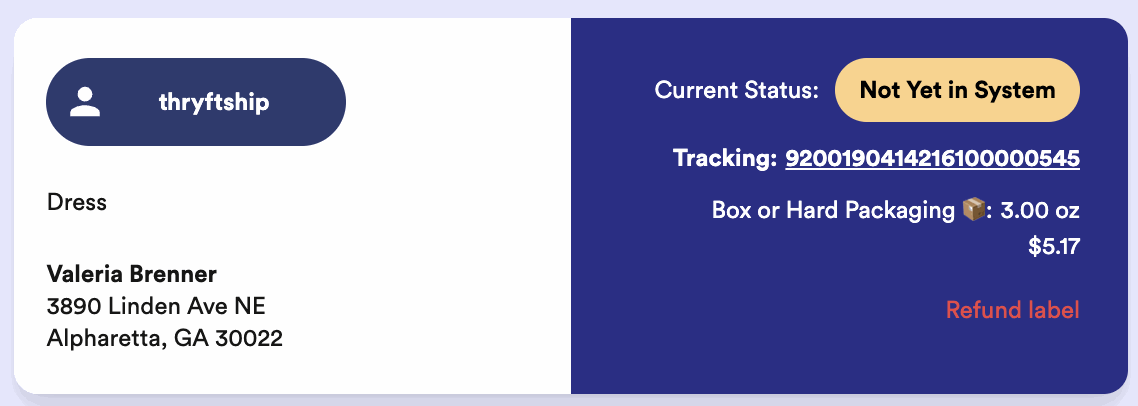
Find the label you haven’t used
Pick a label that hasn’t been scanned in yet — that’s the kind you can refund.
-
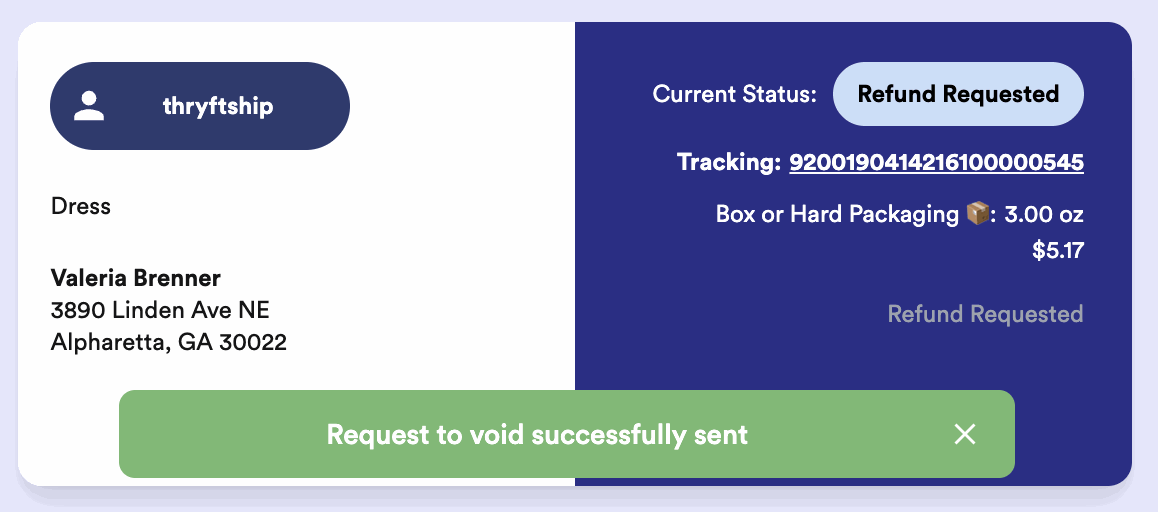
Request the refund
Choose the refund option on that label. Its status changes to Refund requested.
Buying a replacement label
If you still need to ship the order, just create a new label:
-
Click + New Order
Start a fresh order from your Orders page.
-
Type the customer’s Instagram handle
If they’ve ordered from you before, their address auto-fills — no retyping.
-
Add the package info and buy
Enter the weight and dimensions like normal, then purchase the new label.
Common questions
How long does the refund take?
USPS reviews each request — it can take a couple of weeks. You’ll get an email when it’s accepted, and the refund is applied automatically.
Can I refund a label after I made a scan form?
It’s much harder once a label is on a scan form. Always request the refund before creating your scan form, while the label is still unused.
Where do I find my labels?
On your Purchased page.
Still stuck on a refund? Reach out and we’ll help.