Comment Didn’t Get Picked Up? How to Manually Mark a Bid
The Sales Assistant reads bids from the numbers in your comments, but every so often one slips by. When that happens, you can record the bid yourself in just a few seconds.
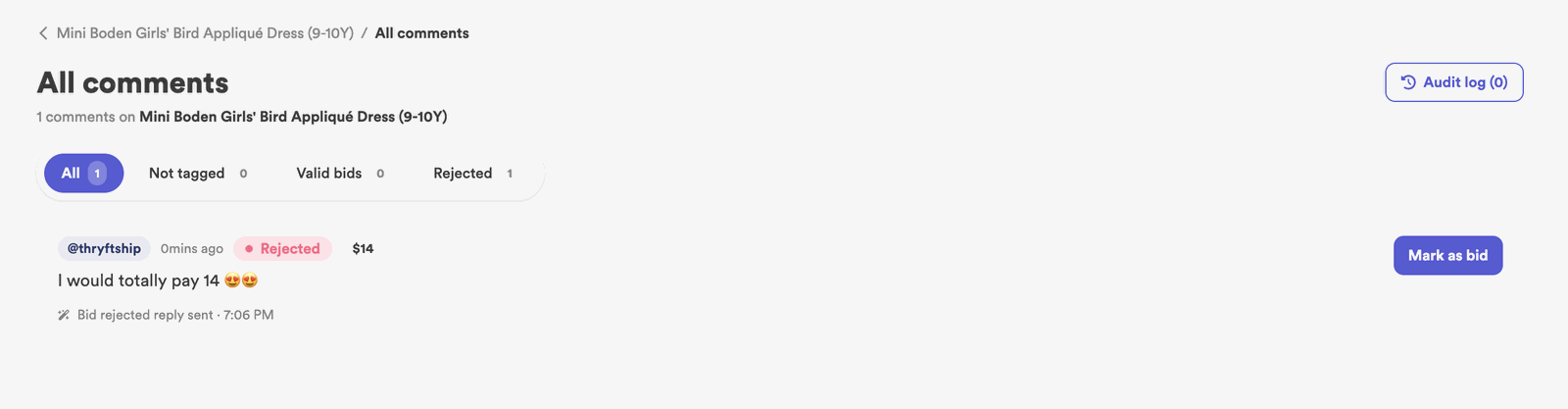
- Open the item and use View All Comments to find the one that didn’t register.
- Mark the bid as accepted to record it manually at that amount.
- From there it behaves like any other bid — it can win and get a checkout link.
Prefer to watch? This clip jumps to manually marking a missed comment as a valid bid.
How to manually mark a bid
-
Open the item on your dashboard
Find the item in your Sales Assistant Dashboard and open its actions.
-
View All Comments
Choose View All Comments to see the full thread and locate the comment that should have counted as a bid.
-
Mark the bid as accepted
Accept that comment as a bid at the amount the customer wrote. It’s now recorded as a real bid on the item.
Common questions
Will the customer still get a checkout link?
Yes — once you accept the bid, the item treats it like any other. If it wins, the customer gets a checkout link as usual.
Can I mark a bid at a different amount?
Record it at the amount the customer actually commented, so your records and their checkout match.
Why wasn’t it picked up automatically?
Usually the comment wasn’t a clean number — a typo, a word, or an edit after posting. See How Comments Work.
Run into a comment you can’t mark? Reach out and we’ll help.