How to Refund a Customer
Need to send a customer their money back? You can do it in just a couple of clicks from your Payments page — and there are two easy ways to get there.
- Open your Payments page and click the customer’s payment.
- Or open the order’s receipt and click the payment link — it takes you straight there.
- Click Begin refund, and the money goes back to how they paid.
Option 1: From the Payments page
- Open Payments
Go to your Payments page.
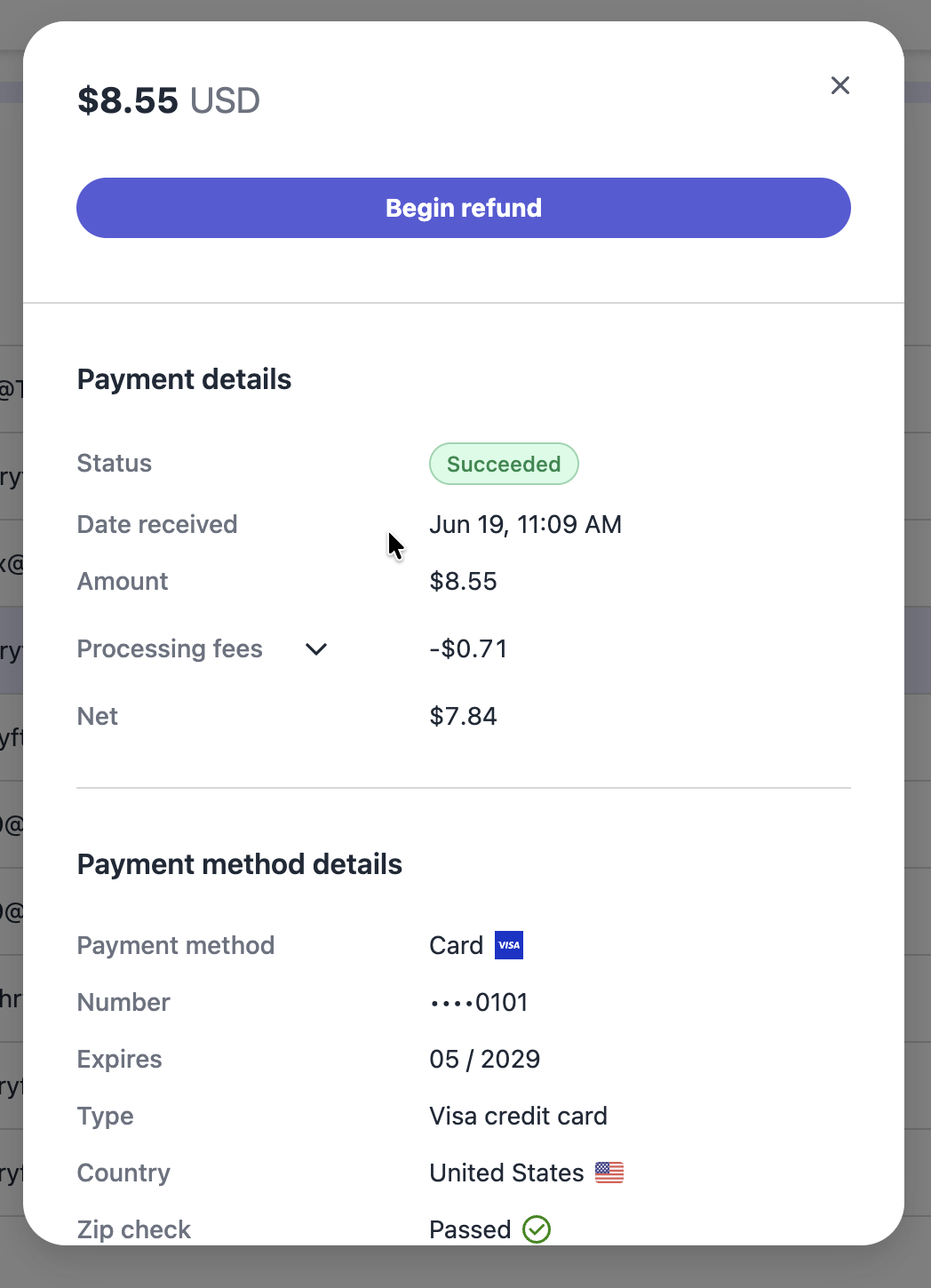
- Click the customer’s payment
Find and click the payment from the customer you want to refund.
- Click “Begin refund”
Click Begin refund and confirm. The refund is sent back to the customer’s original payment method.
Option 2: From the order
- Open the order and click the receipt
On the order itself, click the receipt.
- Click the payment link
On the receipt, click into the Payments link — it takes you directly to that payment.
- Click “Begin refund”
From there, click Begin refund to send the money back.
Common questions
Where does the refund go?
Back to the customer’s original payment method — the same card or bank account they paid with.
The refund button isn’t working — what now?
A few things can hold up a refund. See Why can’t I refund my customer?
How is this different from refunding a shipping label?
Refunding a customer sends back what they paid you. Refunding a label is about unused USPS postage — see How do I refund my shipping label?