
Default and Custom Package Types
If you ship the same kinds of packages over and over, setting a default package type — or saving your own custom one — saves you from re-entering the same details on every order.
- Set a default package type in Settings so it auto-fills on every new order.
- Save custom package types (with names and sizes) for the packages you reuse.
- Dimensions are required for boxes, hard packaging, polymailers, and envelopes — only Flat Rate USPS packaging skips them.
How default package types work
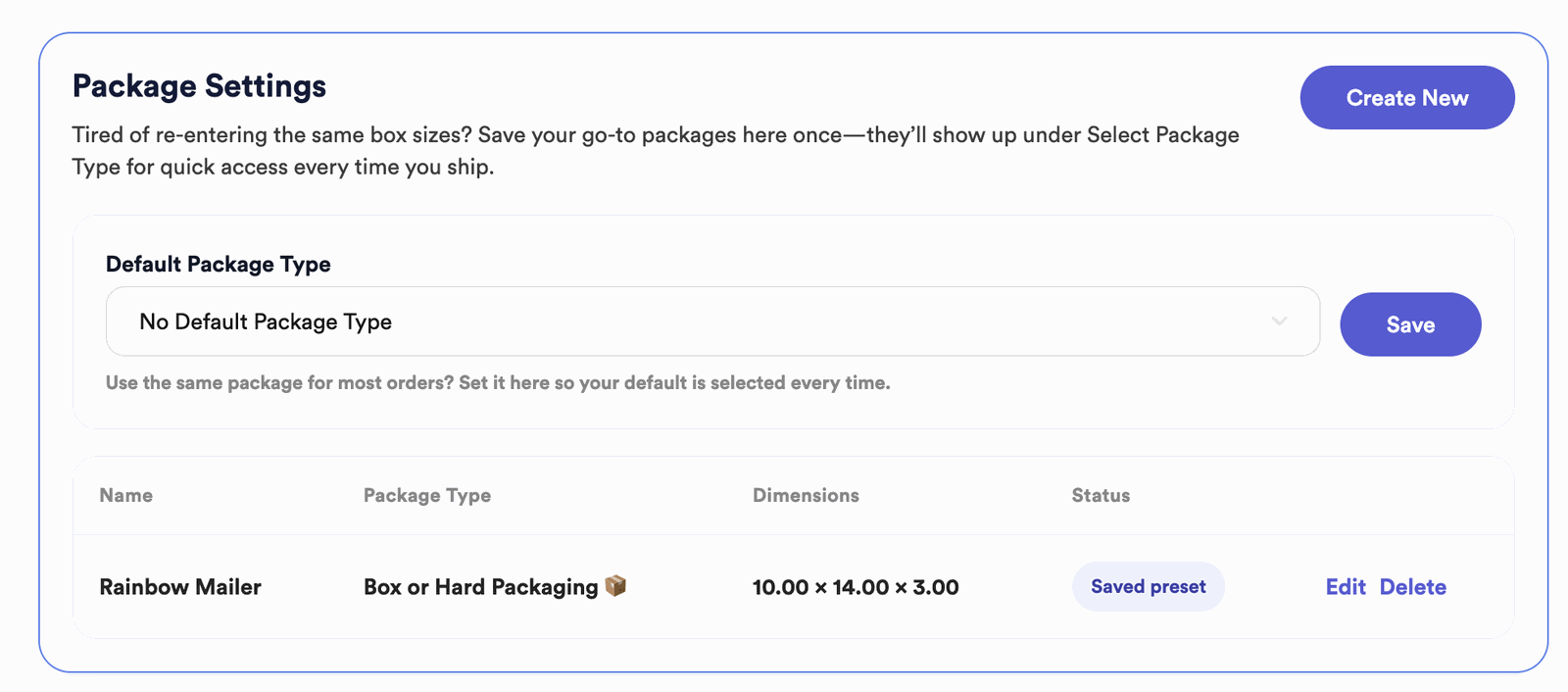
A default package type is the packaging that’s automatically selected every time you create a new order — so you’re not picking the same option by hand each time. You can still change it on any individual order before you buy the label.
Setting your default
-
Open your settings
Log in, click your profile icon in the top-right corner, and go to Settings.
-
Find Default Package Type
Go to the Package Type section and look for Default Package Type.
-
Choose an option
Pick the built-in option that fits how you ship most often (see the three choices below). It’ll auto-populate on every new label from then on.
No Default Package Type
Best if you use a variety of packages and want to choose manually for each order.
Box or Hard Packaging
For boxes — or any polymailer thicker than ¾ of an inch (common for clothing and multi-item orders).
PolyMailer or Envelope
For flat shipments. Best for envelopes under 18 inches in any direction and less than 3 inches thick. Bigger or thicker than that? Switch to Box or Hard Packaging.
Creating custom package types
Ship a mix of sizes, or have specific dimensions you reuse? Save them as custom package types so they’re one click away on the shipping form.
-
Open Custom Package Types
In the same Package Type section of Settings, scroll down to Custom Package Types and click Create New.
-
Fill in the details
Give it a name (e.g. “Small Box” or “Flat Mailer”), choose a type (Box or PolyMailer), and enter the dimensions. Then click Save.
-
Use it — or make it your default
Your custom package now appears in the dropdown on the shipping form. To make it the default, select it in the section above and click Set Default Package.
Which should I use?
- Set a default if your packaging is consistent.
- Go custom if you reuse a few specific sizes.
- No default is best if every shipment looks different.
You can always override the default on any individual order in the shipping form. Need a refresher on the whole flow? See Your First Shipping Label.