
How to Pass an Item On to the Next Bidder
A winner changed their mind, or never paid — and now someone else wants the item. Good news: you don't have to wait for anything to expire or rebuild the order by hand. In a couple of clicks you can move the item to a new buyer — it creates their order, removes the item from the first person, and hands you a checkout link to send them.
- If a winner doesn't want their item (or never pays), you can pass it to someone else — no need to wait for it to expire.
- Open the item (or its ··· menu) in your Sales Assistant and click Sell to Someone Else. This works whether the item is still Claimed (awaiting payment) or already Expired.
- Pick the buyer — the next bidder in line, or anyone you choose — and Create Order. The item leaves the first person's order automatically, and you get a checkout link to send the new buyer.
You don't have to wait for it to expire
Whether the winner told you they don't want it, or they simply never paid, you can reassign the item any time. Sell to Someone Else works on an item that's still claimed and on one that's already Expired — so you're never stuck waiting on a deadline before you can move it along.
Pass it on with "Sell to Someone Else"
-
Find the item
In your Sales Assistant, find the item you need to move. While it's waiting on payment it shows a CLAIMED tag; once the payment deadline passes it moves to the Needs Your Attention section as EXPIRED. You can reassign it in either state.

A still-unpaid item shows CLAIMED — you don't have to wait for it to expire. -
Open its actions
Click the item to open its full details, or click the three dots (···) next to it for the quick menu.
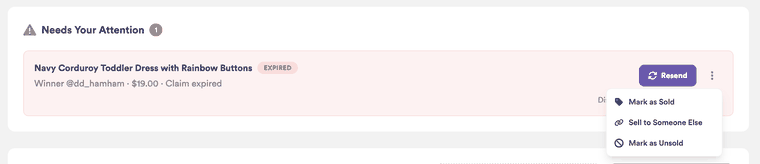
The ··· menu (shown here on an expired item) — or open the item for its full Actions list. -
Click "Sell to Someone Else"
It's the top action either way.
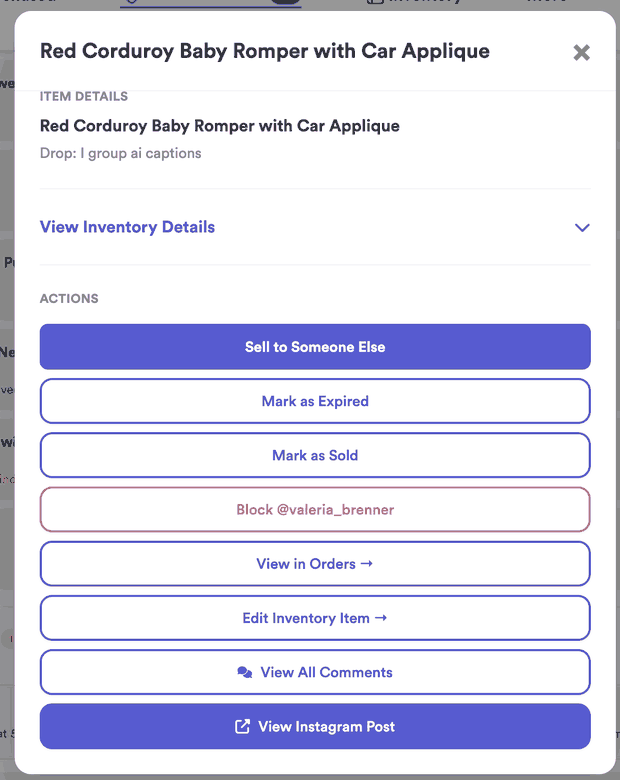
Opening the item shows the full Actions list — "Sell to Someone Else" is right at the top. -
Pick the buyer and Create Order
In the window that opens you'll see the current winner (crossed out, since they're being removed). Choose who gets the item: pick the next bidder in line under Select a bidder (their bid price fills in for you), or type any buyer's @username and a price. Then click Create Order.
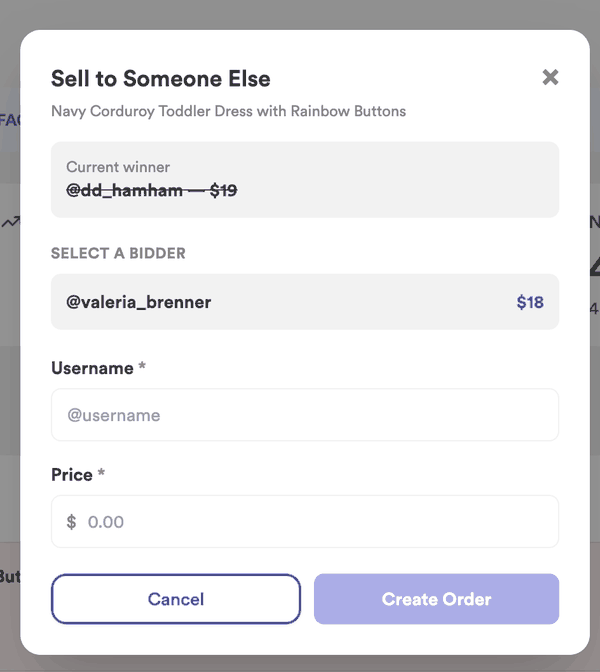
Pick the next bidder, or type a username and price — then Create Order. -
Share the checkout link
That's it — the item is now off the first person's order and on the new buyer's. Thryft Ship doesn't message the buyer for you: you'll see Order created! with a checkout link to Copy and send, or you can click Go to DMs to message them. Send it over and they check out like any other winner.
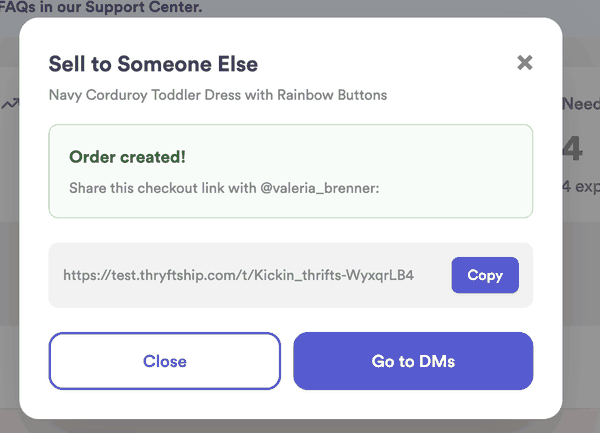
“Order created!” — copy the checkout link to share, or jump straight to DMs.
Common questions
Do I have to wait for the item to expire first?
No. Sell to Someone Else works whether the item is still in the first person's order or already marked Expired. You can move it as soon as you know they don't want it.
What happens to the first person's order?
The item is removed from their order automatically, and they're not charged for it. If it was the only item in their order, the whole order is removed.
Does Sell to Someone Else message the buyer for me?
No. It creates the order and hands you a checkout link to share — copy it and send it, or click Go to DMs to message them. Nothing goes out automatically; you send the link.
Can I pass it to the next-highest bidder specifically?
Yes. In the Sell to Someone Else window, the next bidder in line appears under Select a bidder with their bid price already filled in — just pick them. Or type any @username and price instead.
Can I do this after the drop has ended?
Yes. This all works any time from your Sales Assistant dashboard.