
How to Reformat Your Shipping Labels
Labels printing in the wrong size or layout? No need to stress — it’s an easy fix. Set your default label format once in Settings and it sticks for every future label.
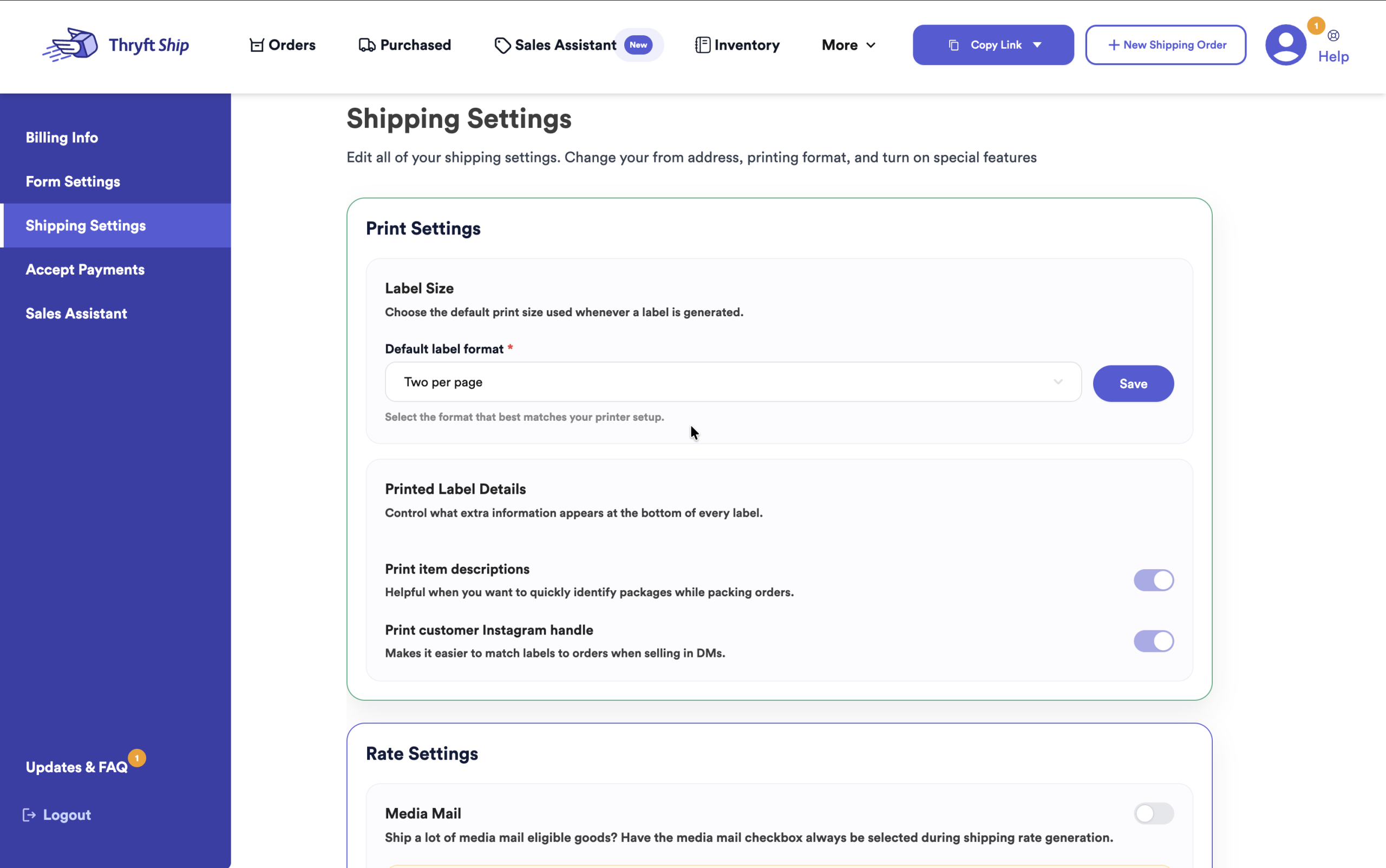
- Go to Settings → Shipping Settings → Print Settings.
- Under Label Size, pick your Default label format and click Save.
- It applies to all future labels automatically.
Set your default label format
-
Open your shipping settings
Click your profile icon in the top-right corner, choose Settings, then open Shipping Settings.
-
Choose your Default label format
In the Print Settings section, find Label Size → Default label format and pick the option that matches your printer — for example Two per page for regular 8.5×11 paper, or a 4×6 size for a thermal label printer.
-
Save
Click Save. From now on, every new label is generated in that format — no more adjusting it order by order.
Common questions
Will this change labels I already purchased?
No — the default format applies to future labels. For labels you’ve already bought, use the print-dialog method instead.
Which format should I pick?
Match your printer: choose Two per page if you print on regular paper, or the 4×6 option if you use a thermal label printer.
Where do I download the labels after this?
From the Purchased tab — see How to Download Your Shipping Labels.
Still seeing a layout issue after saving? Reach out — we’ll sort it with you.