
Seeing “Error Generating Rates: Please check that the destination address is correct”? Don’t worry — it’s almost always a tiny address issue you can fix in a few seconds.
TL;DR
- This error means USPS couldn’t read the destination address.
- Usually it’s an extra space, a typo, or info in the wrong line.
- Fix the address, then Get Rates again — it’ll go through.
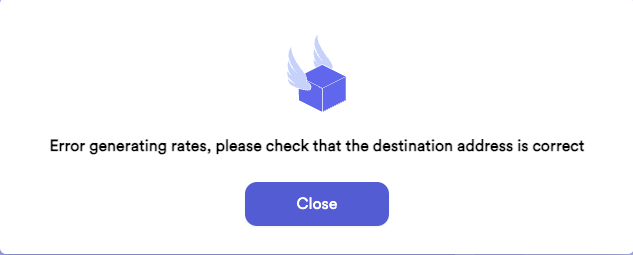
How to fix it
- Remove any extra spaces
Stray spaces at the start or end of a field can trip it up. Check Address Line 1 and 2, the city, and the ZIP code for extra spaces.
- Confirm the address with your customer
A small typo or a missing detail is the usual culprit. Double-check the address is accurate and complete.
- Check Line 1 vs. Line 2
Line 1 is the street address only (e.g., 123 Main St). Line 2 is for an apartment, suite, or unit (e.g., Apt 4B). Mixing these up can stop the address from being recognized.
- Try Get Rates again
Once the address looks right, hit Get Rates again and it should generate normally.
Still stuck? If it still won’t generate after fixing the address, reach out and we’ll take a look — this is one case where it’s worth getting a hand.