

• Home
  • About us
  • Support
  • Contact Us
  • The Thryfter Blog
  • Home
  • About us
  • Support
  • Contact Us
  • The Thryfter Blog
Sign Up/Log In

The Logo for Thryft Ship, a shipping company that helps small businesses print USPS shipping labels to take to the post office
Sign Up/Log in

  • Home
  • About us
  • Support
  • Contact Us
  • The Thryfter Blog
Sign Up/Log in

The Logo for Thryft Ship, a shipping company that helps small businesses print USPS shipping labels to take to the post office
Sign Up/Log in

Support  ·  Thryft Ship Sales Assistant

Using the Sales Assistant Dashboard

Thryft Ship
March 6, 2026
📊 Sales Assistant

Using the Sales Assistant Dashboard

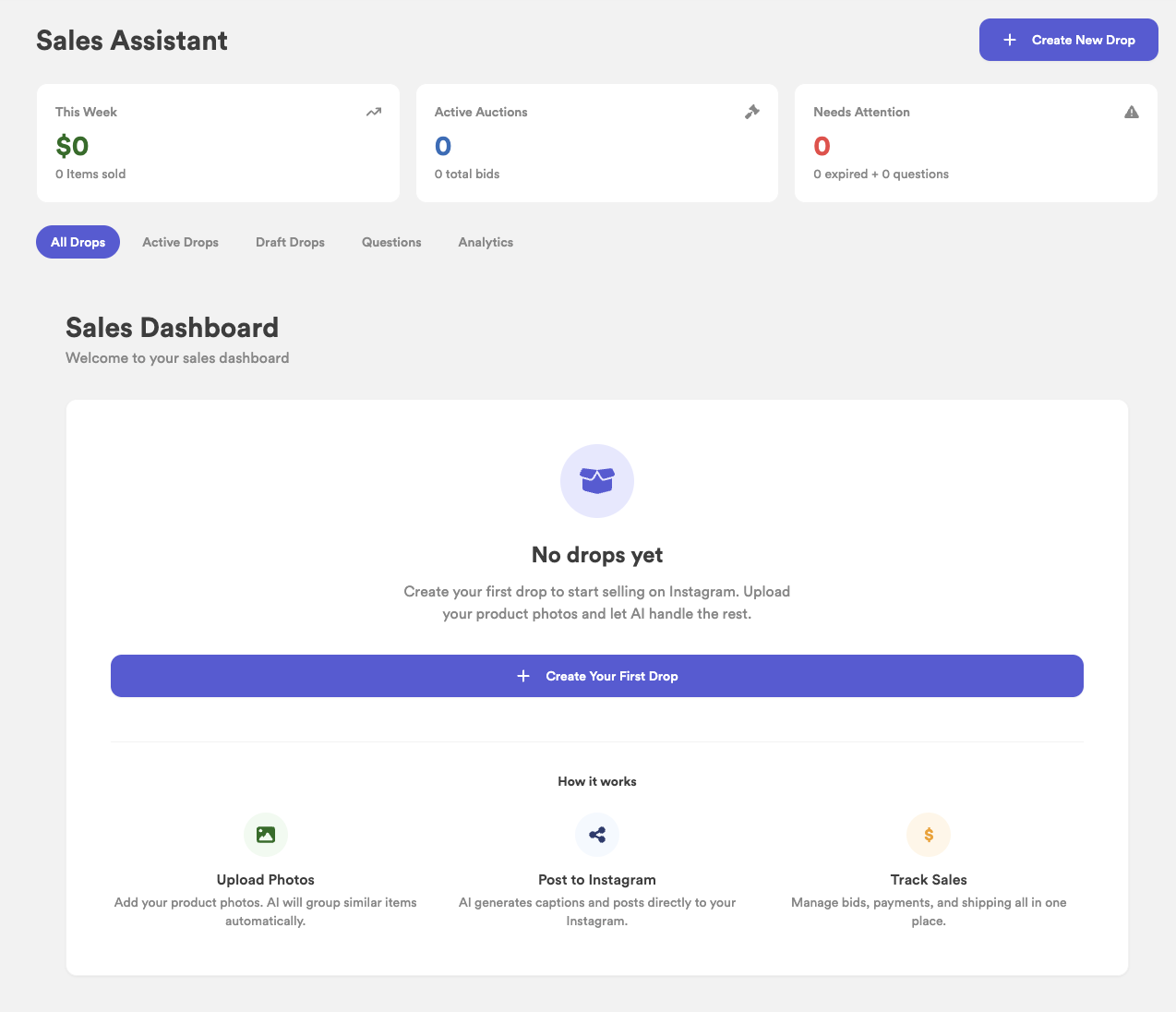
The Sales Hub is your command center for drops. This is where you create and manage drops, track bids and winners, respond to flagged questions, and handle “what happens next” when someone doesn’t pay.
Quick mental model: The Sales Hub is organized by item status. Each item moves through a clear lifecycle — Active → Claimed → Paid → Shipped (or Expired / Unsold / Manual).
Sales Hub Dashboard screenshot

Sales Hub overview (replace with your screenshot).

On this page
  • What you can do from the Sales Hub
  • Create a Drop
  • Attention banner (expired + questions)
  • Understanding item statuses
  • Active items (bidding vs BIN-only)
  • Claimed items (awaiting payment)
  • Paid items (ready to ship / open bag)
  • Shipped items
  • Expired items (no payment)
  • Unsold items + relisting
  • Manual orders (grey status)

What you can do from the Sales Hub

The Sales Hub is built for 4 things

Everything you need during and after a drop — without hopping between apps.

  • Create drops (upload photos → group items → review → post)
  • Monitor bids / claims and see who is currently winning each item
  • Handle exceptions like questions, expired checkouts, and reselling to the next buyer
  • See outcomes (paid, shipped, unsold, sold elsewhere) and track performance over time

Create a Drop

Click Create Drop to start a multi-step flow:

  • Step 1: Upload images + confirm drop settings
  • Step 2: Group photos into items + set titles, captions, and pricing
  • Step 3: Review everything + Post (or Save as Draft)
Save as Draft: Draft drops don’t post to Instagram yet. You can come back and edit later.

Attention banner (expired + questions)

The Attention section is where the Sales Assistant surfaces items that need you. Two common reasons something appears here:

  • Expired checkout: a winner didn’t pay before the deadline
  • Flagged questions: a customer asked something that needs your response (size, measurements, condition, etc.)
Think of Attention as your “don’t miss this” list — check it after you post and again before you ship.

Understanding item statuses

Every item in your drop will show a status badge. This helps you instantly understand what’s happening and what (if anything) you need to do next.

Status cheat sheet

Most items follow a simple path. The rest are edge cases the dashboard helps you resolve quickly.

Active
Drop is live — monitoring bids/claims.
Claimed
Winner determined — waiting on payment.
Paid
Payment received — ready to ship (or in open bag).
Shipped
Label purchased or local pickup completed.
Expired
Checkout link expired — no payment received.
Manual
Converted to a manual order (never expires).
Unsold
No winner or manually marked unsold.
Sold Elsewhere
Marked sold outside of Thryft Ship.

Active items (bidding vs BIN-only)

Active items are currently live on Instagram and the Sales Assistant is monitoring comments. What you see depends on the sale type:

Bidding items

  • Shows current highest bid
  • Shows @handle of the current highest bidder
  • Shows bid count + time remaining (until auction ends)

BIN-only items

  • Shows BIN price
  • Shows claim requests
  • No countdown timer
Click any Active card to open the details modal (bid list / claim list, item info, and actions).

Claimed items (awaiting payment)

“Claimed” means there’s a winner and a checkout link has been sent — but payment hasn’t been completed yet.

What happens automatically

This is the default Sales Assistant flow.

  • The winner receives a DM with a specialized checkout link
  • An order appears in your Orders page with status Owed
  • A reminder can be sent before the deadline (based on your settings)
Claimed items typically have a checkout deadline (ex: 24 hours), but reminder timing and deadlines are adjustable in settings.

Buttons you’ll see in the Claimed modal

Use these when someone doesn’t pay or you want to override the automation.

  • View in Orders — jump straight to the order
  • Sell to someone else — create a manual checkout for another bidder
  • Mark as Unsold — deactivate checkout and move to Unsold
  • Block @buyer — deactivate checkout + block list options
  • Delete item — remove from dashboard (inventory becomes hidden)

Paid items (ready to ship / open bag)

“Paid” means the customer has completed checkout and your order is ready for fulfillment. What happens next depends on whether open bags are enabled.

If open bags are disabled

  • Status shows “Ready to ship”
  • Use Orders to purchase a label and fulfill

If open bags are enabled

  • Status shows “In open bag” with days remaining
  • You’ll ship once the bag closes (customer closes or timer ends)
Shipping actions happen in Orders. Sales Hub stays focused on auction + customer status.

Shipped items

Items switch to “Shipped” automatically when a label is purchased (or when a local pickup is marked complete) in the Orders flow.

  • No “Mark as shipped” button in Sales Hub
  • Shows tracking info / order completion details when available
  • Includes links back to Purchased / Orders

Expired items (no payment)

If a customer doesn’t pay before the checkout deadline, the item becomes “Expired.” Expired items also show up in the Attention banner so you can decide what to do next.

Your options when something expires

Pick the path that matches your shop rules.

  • Re-send / extend checkout (give the same buyer another chance)
  • Offer to the next bidder (create a manual checkout for bidder #2)
  • Mark as Unsold (move it to Unsold for relisting later)
Offering to the next bidder is usually handled via a manual order so you have flexibility on price and buyer selection.

Unsold items + relisting

“Unsold” means there was no winner (or you manually moved the item to Unsold). The Unsold section helps you quickly decide what to do next.

Buttons you’ll see on Unsold items

Use these to relist, archive, or clean up your drop.

  • Relist — repost the item in a new drop (you may need to delete the old IG post)
  • Mark as Sold — if it sold elsewhere or you handled it off-platform
  • Archive — hide the item (removes from Unsold Active tab)
  • Delete — removes the item from the Sales Assistant view (inventory becomes hidden)

Manual orders (grey status)

Sometimes you’ll want to override automation — for example, selling to someone else, accepting a different payment arrangement, or offering the item to the next bidder. In those cases, you can convert an item into a manual order.

Manual order basics

Manual orders use your generic Thryft Ship link and never expire.

  • Uses a generic Thryft Ship link (no pre-filled payment method)
  • Customer enters their Instagram handle during checkout
  • Manual status never expires
  • Great for “sell to someone else” workflows
Remember: Sales Hub manages the auction lifecycle — Orders is where you complete fulfillment (labels, pickup completion, etc.).

Next up:
Troubleshooting common Sales Assistant issues →

How open bags work
Previous Article

Linkedin Instagram
© Copyright 2020
About Us
Contact Us
Privacy Policy
Company Blog
Support
Terms of Service