
Caption Customization Modes: Format, Tone, and Words to Avoid
When the Sales Assistant writes captions for you, it learns from the example captions you upload. Now you can steer how closely it follows them with three simple modes — so your captions come out consistent every time, without you writing custom instructions or getting surprises.
- Pick one of three modes in your caption settings — no free-typing prompts, no guesswork.
- Exact Format (the default): captions follow the exact structure of your examples, every time.
- Tone: same structure, but in the voice you pick — Friendly, Professional, Energetic, or Minimal.
- Avoid Words: list up to 10 words or phrases you never want to appear.
- You can always hand-edit any caption afterward.
Where to find it
Open your Sales Assistant settings and go to the Caption Examples section. You'll still upload your 2–3 example captions like always — that part doesn't change. What's new is the mode selector that decides how those examples are used. Your current mode shows right at the top, and there's a Change Mode option if you want to switch.
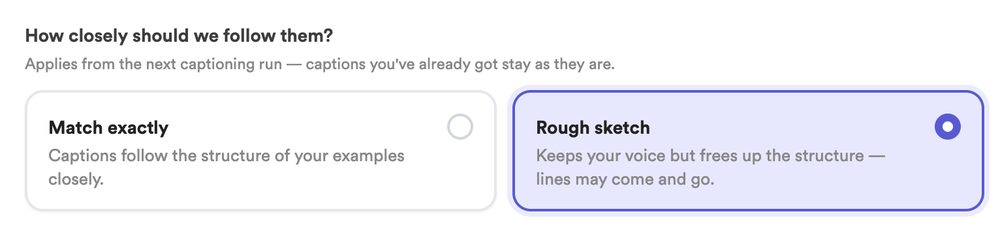
The three modes
1. Exact Format (the default)
This treats your example captions as a template. The Sales Assistant keeps the same layout and flow every time — same order, same sections — and just fills in each item's details. If your examples go brand → size → condition → price, every caption comes out in that exact order.
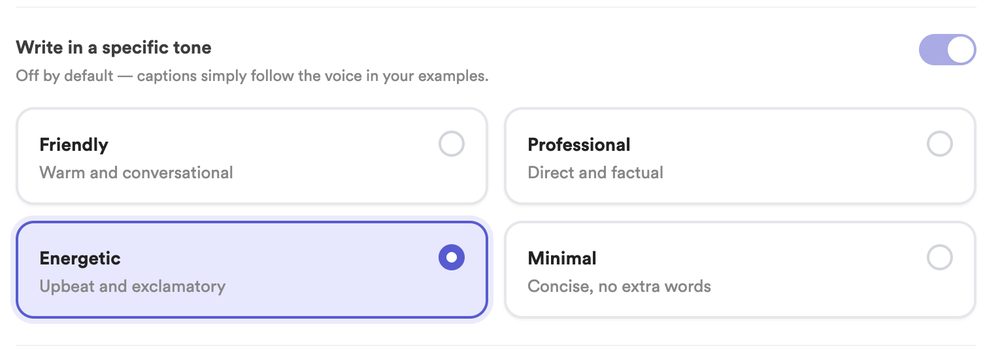
2. Tone
Keeps the same structure as Exact Format, but lets you set the voice. Pick one:
- Friendly — warm and conversational
- Professional — direct and factual
- Energetic — upbeat and excited
- Minimal — short and to the point
The words shift to match the vibe you chose, but the layout stays put.
3. Avoid Words
Have words you never use? Enter up to 10 words or short phrases, one per line, and the Sales Assistant keeps them out of your captions. A kids' clothing seller might block “baby,” “toddler,” and “kiddo”; a furniture reseller might block “shabby” or “distressed.” Your captions come back in your normal style, just without those words.

Switching modes
Change your mode any time from the Caption Examples section. The next batch of captions the Sales Assistant generates will use your new choice. Switching doesn't touch captions you've already made or edited — and you can always tweak an individual caption by hand in the editor, whatever mode you're in.
Common questions
Do I still upload example captions?
Yes — nothing changes there. You still add your 2–3 examples, and they're still the core of how the Sales Assistant learns your style. The mode just decides how strictly those examples are followed.
Can I combine modes — like a tone AND avoid words?
You pick one mode at a time. Exact Format and Tone both keep your structure; Avoid Words focuses on keeping specific words out. Choose whichever fits what matters most for a given drop, and switch whenever you like.
What if the AI still uses a word I asked it to avoid?
It's built to leave those words out. If one slips through, you can remove it in the caption editor before you post — hand-editing always works, in any mode.