
Thryft Ship Setup Guide
Getting set up is a one-time thing, and it’s mostly clicking a few buttons. There are just three steps: connect Instagram, turn on payments, and set your settings. The first two get you selling; the third is where you fine-tune how everything works — and it all comes with sensible defaults, so you can change what you want and skip the rest.
- Step 1 & 2 get you live: connect your Instagram, then turn on payments (Stripe). That’s enough to run your first drop.
- Step 3 is your settings — payment, shipping, drop, comment, and DM settings. Expand any group below to see what it does.
- Almost everything has a smart default and can be changed anytime; most drop settings can also be overridden per drop.
- Optional extras (Venmo, sales tax, open bags, local pickup) stay off until you turn them on.
Prefer to watch? Here’s a quick walkthrough of getting set up.
The three steps
-
Connect your Instagram
So the Assistant can read comments and DMs on your posts.
-
Turn on payments (Stripe)
So buyers can check out and you get paid into your own account.
-
Set your settings
Payment, shipping, drop, comment, and DM settings — all optional fine-tuning.
Step 1: Connect your Instagram
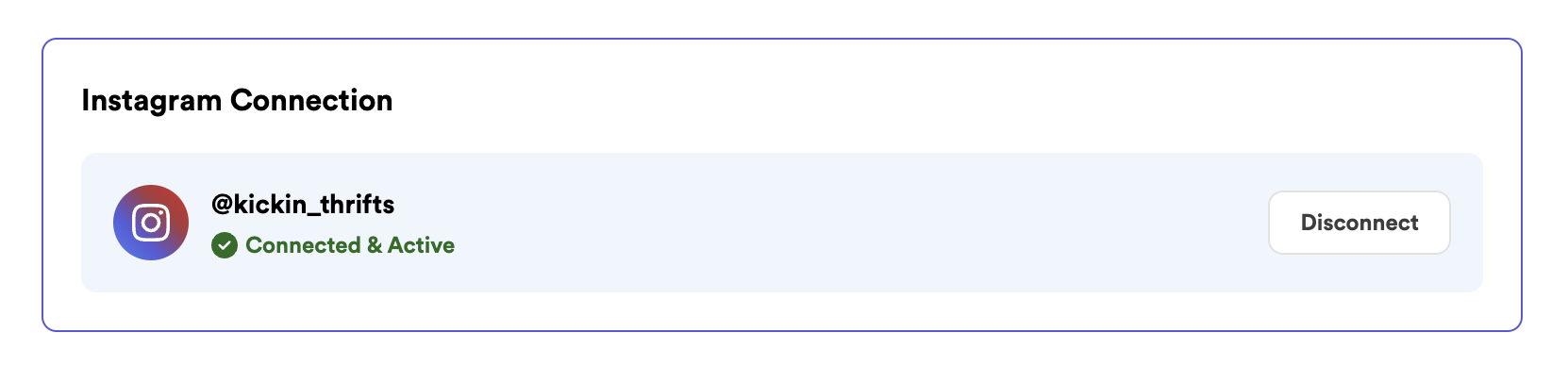
This is what lets the Sales Assistant do its job — read the comments and DMs on your posts, recognize bids and “sold” claims, and message your buyers. Nothing gets posted on your behalf; connecting is read-and-reply only. Go to your Sales Assistant settings, find Instagram Connection, click Connect, and approve access. You’ll see your handle with a green Connected & Active badge.
Step 2: Turn on payments (Stripe)
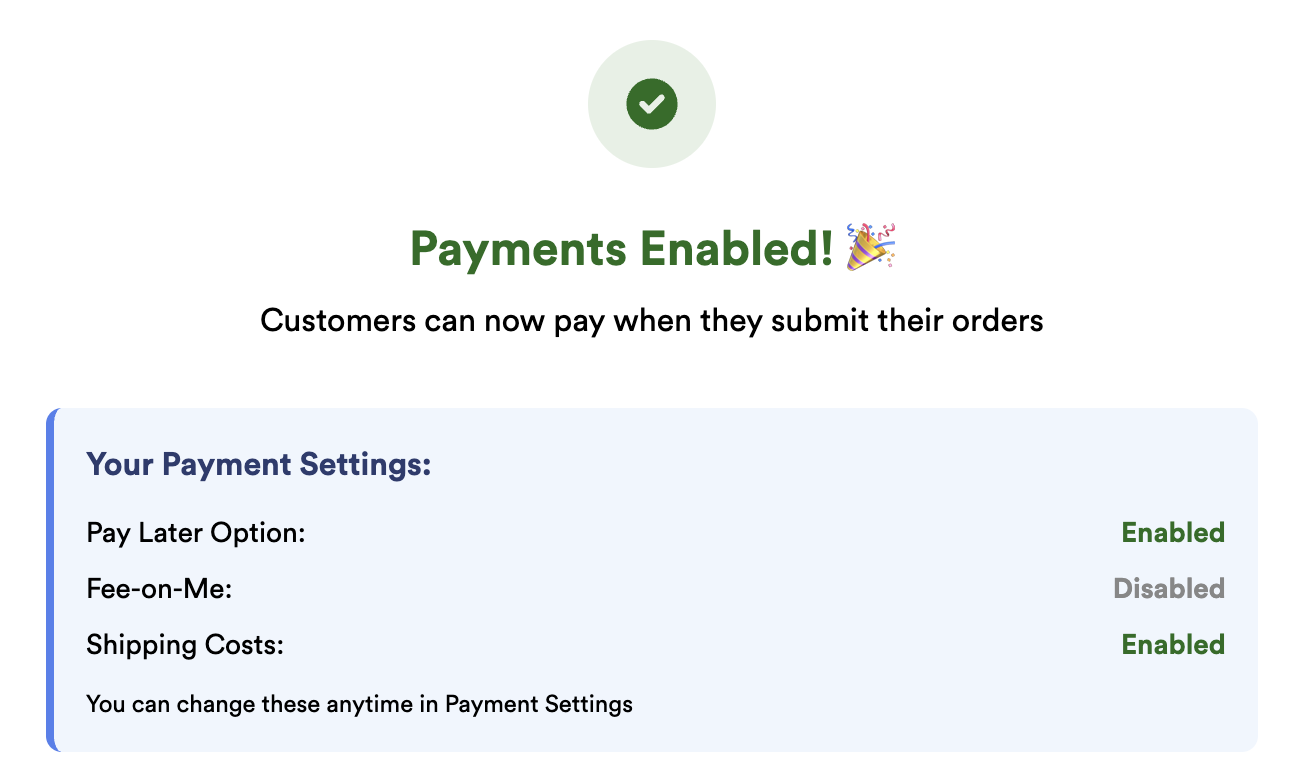
Payments are how your buyers pay you — and the money goes into your own account. Behind the scenes we use Stripe, a trusted processor used by millions of businesses, to run secure card checkout and send your money to your bank. Go to your Accept Payment settings and follow the prompts: confirm a few basics about your shop and add the bank account for your payouts. When it’s done, your page shows Payments Enabled and buyers can check out through your Thryft Ship link.
Step 3: Set your settings
This is where you shape how everything runs. It’s all optional — every setting already has a sensible default. Below, each group is collapsed to keep things tidy; tap any group to open it and see what’s inside.
Payment, shipping & checkout options
In Accept Payment settings → Payment, Shipping & Checkout Options, you decide how buyers are charged:
- Fee-on-Me — choose who covers the card processing fee: pass it to the buyer (their total shows your price plus a small fee) or cover it yourself (buyers pay exactly your listed price and the fee comes out of your payout). On a $10 sale that fee is about $0.59.
- How you charge for shipping — Flat (same price every order), Tiered (base price plus a bit per extra item), or Exact/Precise (the real carrier rate per order — see how Exact Shipping works). You can also set a free-shipping threshold and international rates. See How Automatic Shipping Works for the full rundown, including how it handles orders you already have.
- Pay Later — gives you two links: a Checkout link (pay now) and a Submit link (add items without paying yet, then pay for the whole order when ready).
- Pay with Venmo (optional, not recommended) — shows your Venmo at checkout, but Thryft Ship can’t track or protect it and you confirm each payment yourself. See Using Venmo for Business.
- Sales tax (optional, off by default) — collect the correct tax where you owe it. Start with Sales Tax on Thryft Ship.
Your from-address, labels & packages
In Shipping settings, set the details that make labels print right and rates come out accurate:
- From address — your return address. It prints on every label and is used to calculate rates, so keep it correct.
- Label size & print details — pick your label format, and optionally print the item description and buyer’s Instagram handle to make packing easier.
- Default package & saved sizes — save your go-to box and mailer sizes so they’re one tap when you ship.
- Media Mail — pre-select it if you ship a lot of media-eligible items (only use it for items that qualify).
Drop defaults
In Sales Assistant settings, these apply to every new drop — and you can override any of them when you build a specific drop:
- Auto-group photos into items — let the AI sort your photos into items, or group them yourself.
- Auto-write captions & suggest pricing — let the AI draft a caption and prices, or write your own. See Caption Customization Modes.
- Posting speed — how long the Assistant waits between posts. Regular is recommended; see managing large drops.
- Sale type — Buy It Now, Bids, or Hybrid (both).
- Auction length — how long items stay open for bids (6, 12, 24, 48 hours, or custom).
- Custom bid increments — off by default ($1 steps); turn on to set your own minimum step.
- Delay BIN invoices until the drop ends — send buy-it-now invoices with the bid winners at the end instead of immediately.
- Smart Extend (anti-sniping) — nudges an item’s close time when a bid lands in the final seconds. See Extend a Whole Drop.
What the Assistant says in comments
Under Comment Behavior & Automation, you control — and can reword — the replies the Assistant leaves on your posts. Each uses fill-in-the-blanks like {item_name}:
- Accepting / rejecting a bid, outbid notice, bought via BIN, BIN claimed response, winner notice, and a reply on sold items.
Full detail: How Comments Work.
Checkout & DM messages
Under Checkout and Form settings, set the deadlines and the DMs winners get (all editable, with fill-in-the-blanks like {buyer_name}):
- Payment deadline — how long buyers have to check out after winning (up to 48 hours).
- Payment reminder DMs — auto-nudge buyers who haven’t paid yet.
- Winner DM — the checkout-details message (with an open-bag version).
- Payment confirmation DM — the “you’re all set” note once checkout succeeds.
Open bags & local pickup
- Open bags — let buyers keep adding items over a window you choose (say, two weeks) and ship it all together.
- Local pickup — let nearby buyers pick up in person and skip shipping. You set the location and instructions.
Your caption style
Give the AI a few of your own captions as examples and it’ll match your voice. You can tell it to match exactly or keep a rough sketch, set a tone (friendly, professional, energetic, minimal), and add words to avoid. Details in Caption Customization Modes.
Block list
Add a handle to your Block List and they’ll stop getting bids and replies through Thryft Ship the next time they comment. (It’s a Thryft Ship block only — it doesn’t block them on Instagram.)
Common questions
Do I really have to set all of this before my first drop?
No. You only need two things to go live: your Instagram connected and payments turned on. Everything in Step 3 already has a sensible default — come back and tune it whenever you like.
Can I change these settings later?
Yes, anytime. And most drop settings (sale type, auction length, bid increments, and so on) can be overridden on an individual drop when you build it — the settings page just sets your defaults.
What’s the difference between “Accept Payments” and “Billing”?
Accept Payments is how your buyers pay you. Billing is where your own Thryft Ship subscription and shipping-label charges are paid. Different directions, different pages.
Do I need my own Stripe account?
Yes — payments run on your own account, which means you’re the store making the sale. That’s what puts the money in your bank and gives you direct control. Setup walks you through it; you don’t need to know anything technical.