
Using the Sales Assistant Dashboard
The Sales Assistant Dashboard is your command center while a drop is live. It shows every item, who’s winning, who still owes payment, and anything that needs a human touch — all in one place.
- See every item in your drop and its live status at a glance.
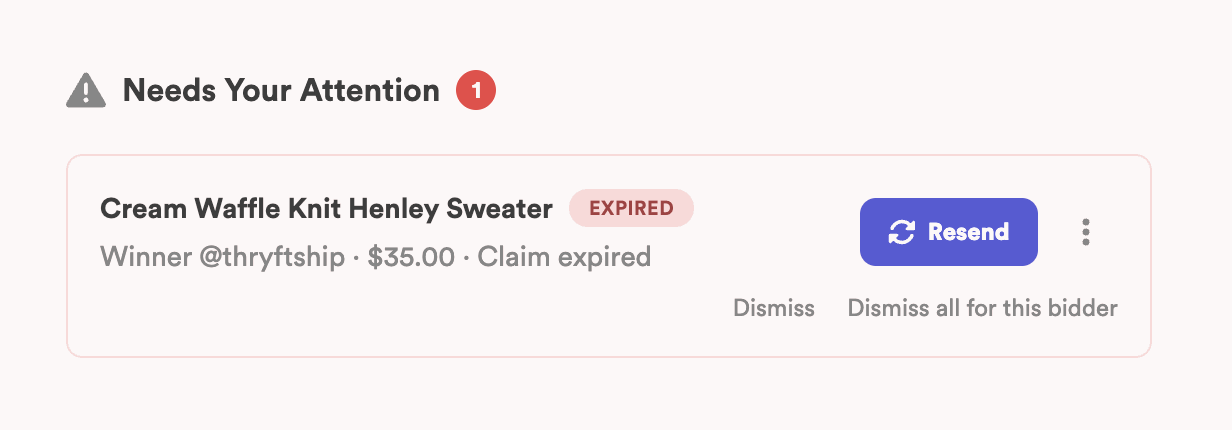
- Needs Attention surfaces anything waiting on you — expired checkouts and customer questions.
- Open any item’s actions menu to resend a checkout link, offer the next bidder, mark it sold, and more.
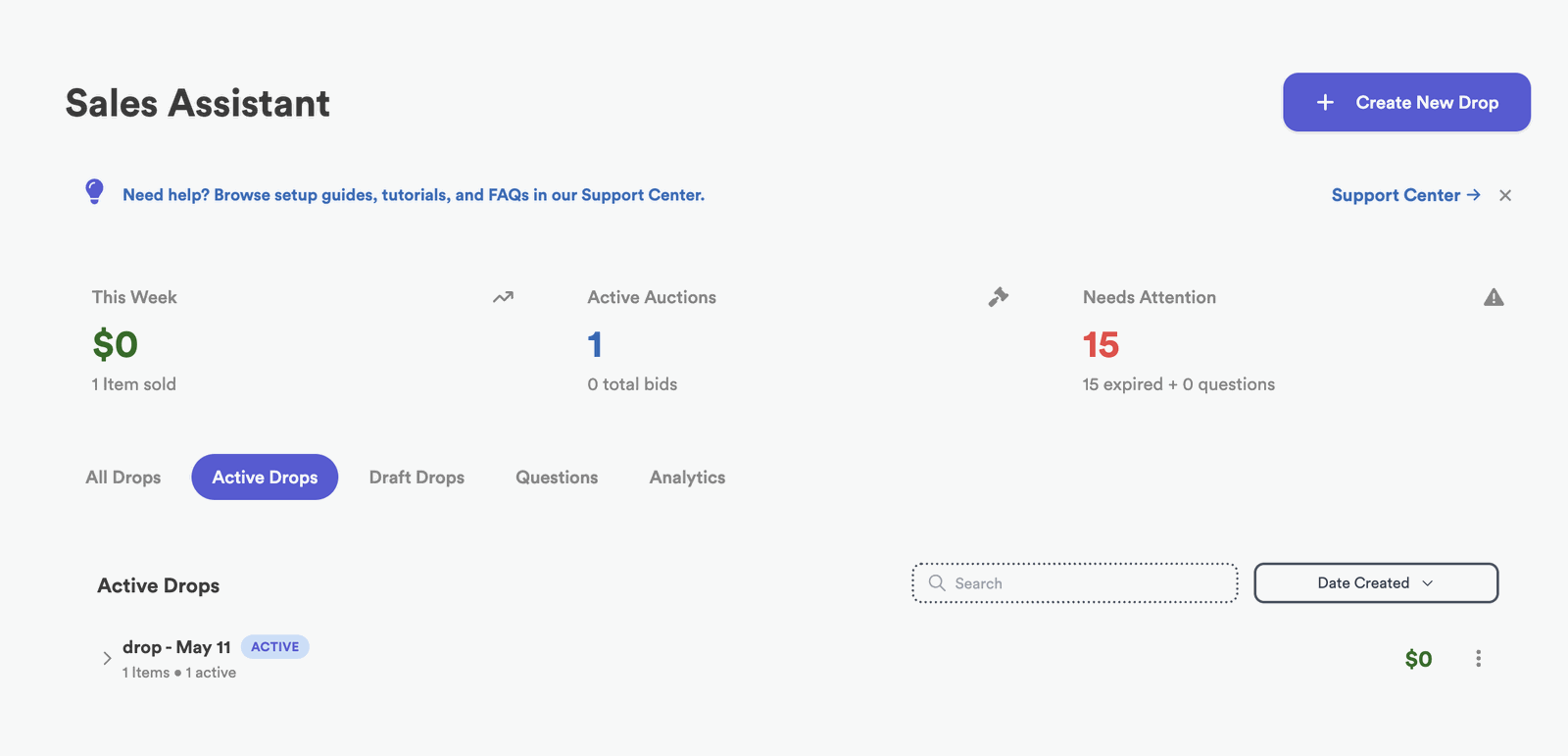
Prefer to watch? Here’s a full walkthrough of a live, active drop — every status and action button you’ll see.
What you’ll see
Your items
Every item in the drop, each with its current status — active, claimed, paid, shipped, expired, or unsold.
Live bids & winners
The current high bid on each item and who’s winning it, updating as comments come in.
Needs Attention
A short to-do list of anything that needs you — so nothing slips through the cracks.
The Needs Attention area
This is the first place to look. It gathers up everything that can’t be handled automatically, in two groups:
- Expired checkouts — a winner’s payment window ran out before they paid.
- Questions — a customer asked something in the comments that needs a real answer from you.
Unsold items and the grid
When you build a drop from the grid, every Instagram post shows one of three statuses:
- New — the post isn’t in your inventory yet.
- In Inventory — it’s already linked to an item.
- Unsold — it was in a past drop and didn’t sell.
You can filter the grid to show or hide unsold items, so you can go hunting for leftovers on purpose or keep them out of the way while you build a fresh drop.
Select an unsold item and add it to a new drop and it moves across as an active item — no deleting, no re-uploading. We also re-read its Instagram caption at that moment, so any price or end-time change you made there is picked up. For everything you can do with leftovers, see What to Do With Items That Didn’t Sell.
Actions on each item
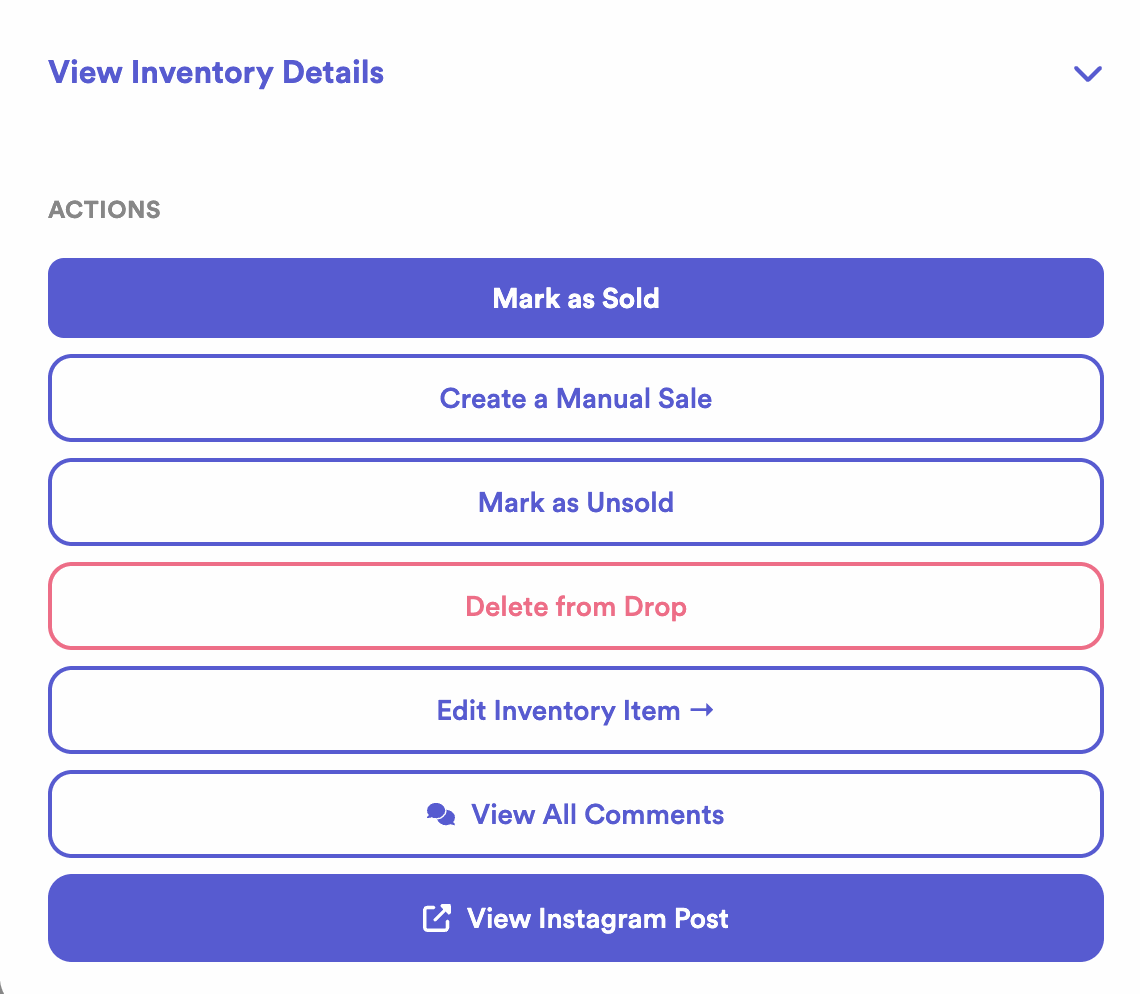
Open the actions menu on any item to handle it by hand. Depending on where the item is, you can:
- View All Comments — see the full comment thread for that item.
- Resend the checkout link — send the winner their payment link again.
- Offer to the next bidder — pass the item to the runner-up if the winner falls through.
- Mark as sold, unsold, or sold elsewhere — keep your records straight.
- Sell to someone else — assign the item to a specific customer.
- Mark as expired — close out a checkout that’s no longer valid.
- Link a post — connect a manual Instagram post to the item.
Related Sales Assistant articles
Everything you can do from the dashboard has a step-by-step guide:
- Set up the Sales Assistant
- Create your first drop
- How captioning works
- How comments & bidding work
- Bids vs. Buy It Now
- How checkout works
- How to end a drop
- When a winner doesn’t pay
- Comment didn’t get picked up
- Message didn’t send to a customer
- Drops with more than 50 items
- Sort your photos before a drop
Common questions
Where do customer questions show up?
In the Needs Attention area. When the assistant spots a question instead of a bid, it flags it here so you can reply personally.
A winner didn’t pay — what can I do from here?
Open that item’s actions menu to resend the checkout link, offer it to the next bidder, or sell it to someone else. See When a Winner Doesn’t Pay.
Can I still manage items I posted manually?
Yes — once you link a post to an item, it appears on the dashboard and behaves just like an automatic one.
Stuck on something in the dashboard? Reach out — we’re happy to walk through it with you.