

• Home
  • About us
  • Support
  • Contact Us
  • The Thryfter Blog
  • Home
  • About us
  • Support
  • Contact Us
  • The Thryfter Blog
Sign Up/Log In

The Logo for Thryft Ship, a shipping company that helps small businesses print USPS shipping labels to take to the post office
Sign Up/Log in

  • Home
  • About us
  • Support
  • Contact Us
  • The Thryfter Blog
Sign Up/Log in

The Logo for Thryft Ship, a shipping company that helps small businesses print USPS shipping labels to take to the post office
Sign Up/Log in

Support  ·  Thryft Ship Sales Assistant

Sales Assistant Setup

Thryft Ship
March 5, 2026
🤖 Sales Assistant

Sales Assistant Setup: Complete Onboarding

In this guide, you’ll connect payments, connect Instagram, and customize your Sales Assistant settings so you’re ready to create your first drop.

Time estimate: Setup takes about 2–5 minutes. If you already accept payments through Thryft Ship, the Stripe step will be skipped automatically.
On this page
  • Step 1: Complete Stripe onboarding
  • Step 2: Connect your Instagram account
  • Step 3: Customize your settings

Step 1: Complete Stripe onboarding (Payments)

Stripe onboarding enables you to accept payments through your Thryft Ship link and through Sales Assistant checkout links.

This step only takes a couple minutes — and if you already accept payments through Thryft Ship, you’ll skip it automatically.

Stripe onboarding guide: https://thryftship.com/support/payments-guide/#onboarding

Once Stripe is connected, customers can pay securely via Apple Pay or card directly through checkout links.

Step 2: Connect your Instagram account

If you already connected Instagram through Smart Inventory, you’re halfway there. The Sales Assistant just requests a couple additional permissions so it can post, comment, and DM customers on your behalf. This takes less than a minute — click Connect and grant permission.

Smart Inventory support: https://thryftship.com/support/inventory-management/

Caption “voice” setup

We look at your recent Instagram sales captions to understand your tone and format. This helps the Sales Assistant generate captions that match how you normally run drops.

If your feed doesn’t have many recent sales posts, we may ask you to paste a few example captions so we can learn your style.
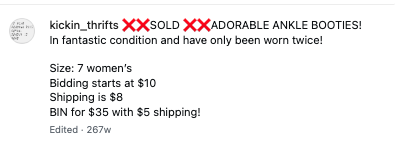
Example Instagram sales caption used for caption voice setup
Example of a caption used to help the Sales Assistant learn your caption style.

Step 3: Customize your settings

Your settings help the Sales Assistant learn how your business runs and how it should handle sales. These settings apply to all new drops by default (and you can always override them per drop).

Quick tip: If you’re not sure which options to choose, start simple — you can update settings any time.

1) Default Sales Settings

Configure whether you run bidding, how long auctions last, and whether you offer “Buy It Now.”

  • Enable bidding by default
    Turn this ON if you run auctions. Turn it OFF for fixed-price / claim-only drops.
  • How long auctions run before ending
    Common options are 12 hours or 24 hours.
  • Enable “Buy It Now” by default
    Turn this ON if you want a BIN option. Turn it OFF if you only offer bidding (no BIN price).
Examples
Fixed price / claim-only
“CLAIM $8”
Bidding
“BID starting $5”
Bidding + BIN
“BID starting $5 • BIN $30”

2) Comment Behavior & Automation

Control how your assistant responds in comments — confirming bids, rejecting invalid bids, and notifying customers.

  • Auto-reply to bids
    When enabled, your assistant confirms valid bids and rejects invalid ones using your message templates.
  • Notify outbid customers via comment
    When enabled, we comment to let a customer know they’ve been outbid so they can bid again.
  • Notify winning customers via comment
    Optional. If enabled, we comment to let the winner know you’ve successfully claimed the item and DM’d them checkout details.
Template variables: You’ll see available variables like {item_name} and {Current Bid Price} that you can use in your comment templates.

3) Checkout & Form Settings

Set payment deadlines, reminders, open bags, local pickup, and the winner notification message.

  • Payment deadline
    How long customers have to complete checkout after winning (max 24 hours).
  • Send payment reminder DMs
    Automatically remind customers if they haven't paid after a certain time (ex: 2 hours before expiration).
  • Enable open bags
    Allow customers to buy multiple items over a span of time before you ship their order (you choose how long).
  • Allow local pickup
    Let customers pick up items in person to save shipping costs — set pickup location + instructions.
  • Winner notification message
    Customize the DM sent to auction winners (supports variables like {item_name}, {winning_amount}, {deadline_hours}, and {seller_name}).

Open bags note: When enabled, winners will see both CHECKOUT and OPEN BAG buttons. If they select Open Bag, you’ll see an open bag status for that order.
You’re ready 🎉 Once these settings are saved, you can create your first drop.

Next up:
Create your first drop →

How the Shipping Line Item Works in Orders
Previous Article
Create your first drop (sales hub)
Next Article

Linkedin Instagram
© Copyright 2020
About Us
Contact Us
Privacy Policy
Company Blog
Support
Terms of Service